Since all we do is set up defined benefit plans and cash balance plans, we’re used to working with Vanguard. They don’t really have a small business defined benefit plan, so we help our clients set up plans on their platform all the time.
During 2024, Vanguard sold their 401(k) business to Ascensus. This has made the set-up process much more cumbersome for clients.
Unfortunately, they don’t have any instructions published on their website or any forms we can link you to. Everything is done online with the help of a representative. All you will need is to have all your plan documents and questions ready.
Some Background
Vanguard sold its Individual 401(k), Multiple Participant SEP (Multi-SEP), and SIMPLE IRA plans to Ascensus. This transaction, announced on April 16, 2024, and closed in the third quarter of 2024.
Under this agreement, Ascensus has assumed recordkeeping and client servicing for their existing plans. Participants will retain access to a diverse lineup of Vanguard mutual funds. Vanguard will continue to offer a one-person SEP IRA for small business owners who do not employ others.
Participants should review communications from both Vanguard and Ascensus to understand how the transition affects their accounts. It’s advisable to consult with a financial advisor to assess any potential impacts on individual retirement planning strategies. They have consolidated this specialized account type with the New Accounts and Asset Transfer department.
Even though Vanguard has sold off this part of their business, they still allow you to set up an investment brokerage account for your cash balance plan or 401(k). However, the process has become very challenging.
Opening a Vanguard Investment Account
The steps for clients to set up an account with Vanguard that will work with Emparion plan documents.
- Make sure you have access to your plan documents. You should have received a link to your Smartvault account where all your documents are stored. The most important documents will be the adoption agreement, IRS EIN confirmation, and the plan trust agreement.
- They have the Vanguard Retirement Brokerage Program, which they call the “VRIP.” Let the Vanguard Rep know they need to open a VRIP account (they should not use other terminology). They may need to wait on hold until transferred to a rep who is trained in this program. We have found that you might spend 10-30 minutes on hold.
- The language used with Vanguard reps is essential, as most Vanguard reps only understand what is needed by saying VRIP. We recommend not using generic language like, retirement account, 401(k) account, etc. This may trigger them to transfer you to Ascensus, which is not the right department.
- Call into Vanguard. They do not have designated reps to call. Use the number: 800-992-0833. This particular department deals with many different situations, so any rep who is knowledgeable about the VRIP program will do. However, only a few individuals can assist with the VRIP account opening process. So, clients will have to dial in and wait to speak with one of those individuals to get access to the right application. The hold time can be lengthy.
- If the client already has an account with Vanguard, the rep will send the necessary application through the client portal and may also prefill some information to help.
- If the client does not have an existing Vanguard account, they will likely need to set up another account, so the client has access to the client portal and messaging (this is common amongst most custodians). The portal also allows reps and clients to send things securely to each other, so it’s highly encouraged.
- Then, the client will finish filling out the application online using the link. They will need to include the application attachment we provide and, lastly, sign the application digitally.
Please ensure that you get your account set up ASAP. Also, make sure that you get the plan funded before the applicable deadline. Of course, we are always here to help if you have additional questions.
Mega Back Door and Multiple Accounts
One big issue that we’ve found with Vanguard is that their internal policy is that they only open up one investment account per 401(k) plan. 401(k) plans do allow multiple participant accounts and also allow for pre-tax and after-tax contributions. So, it is perfectly legal to have multiple 401(k) accounts associated with one plan.
But it is their policy to only have one account per 401(k). This has made the process very challenging when you have an owner and a spouse or an owner who wants to do a Mega Backdoor Roth.
If your goal is to have multiple accounts, please be advised of this Vanguard issue upfront. Their policies do change from time to time, so we’re hopeful that they will revise this policy in the future. If your goal is to have multiple accounts, you should reach out to them to see if they have revised this policy because there’s no guarantee this article will be timely updated if there is a policy change.
Simple Steps to Opening a Vanguard Account
To start, ensure you have access to your plan documents. You should have received a link to your SmartVault account where all your documents are stored. We have provided a document titled ‘Application Attachment,’ which includes key information regarding the adoption agreement, IRS EIN letter, and your signature page. This document will serve as your primary resource when completing the form.
Next, contact Vanguard’s Onboarding Advanced team at 1-800-992-0833. When connected with a representative, inform them that you would like to “set up an account using their Vanguard Brokerage Retirement Investment Program (VRIP).” This program allows you to use Emparion’s plan document with the Vanguard investment platform.
Use EMPARION PLANS on



*Emparion is not affiliated with, endorsed by, or sponsored by these institutions.*
- The representative will confirm whether you have an existing plan document. Please note that your plan document and signature pages establish the new plan. Confirm that you have a retirement plan in place, need an account to house the funds, and have selected Vanguard as your provider.
- At this point the Vanguard representative should send you a link to the application through your Secure Message Center. You may ask for the representative to help pre-fill some of the application information, or you can complete the application on your own.
If you choose to complete the form independently:
- Log in to your Vanguard account and access your Secure Message Center. There will be a link to “Complete your Open or Update a Small Business Account request”. Click the link to begin the process.
- After the terms have been accepted, you will be asked the following questions in a step-by-step form. Be sure to click Next or Save as necessary.
Application Walk-Through:
- Which account would you like to open?
- Select “Open a Vanguard Brokerage Retirement Investment Program“
- Do you have an Employer Sponsored Plan and Trust established?
- Answer: Yes. Click the link shown titled “Vanguard Brokerage Retirement Investment Program (VRIP)” to start the process. This will open the form in a new window.

- Confirm information is correct and click Yes to continue.

Plan & Employer Information:
- Name of Sponsor
- Your business name.
- Name of Plan
- Typically, your business name + “Cash Balance Plan.” Refer to the Application Attachment PDF in your SmartVault for accurate information.
- Plan Tax ID (MUST INCLUDE APPROPRIATE HYPHEN “-” SYMBOLS)
- Use the plan-specific Tax ID number (EIN). Do not use your company’s EIN.
- Is this plan subject to ERISA?
- Yes.
- Email
- Use an email you frequently monitor.
- Phone Number (MUST INCLUDE APPROPRIATE HYPHEN “-” SYMBOLS)
- This can be a business phone number.
- Business Address
- Use the address associated with the business and plan. It does not need to be your personal address.
- Mailing Address
- This may be the same as the business address.

Trustee Information:
Remember, you (or the primary business owner) are the trustee for this plan. The trustee signed the adoption agreement. Ensure that the trustee information is listed correctly. If this section has been pre-filled, review it carefully to confirm accuracy.
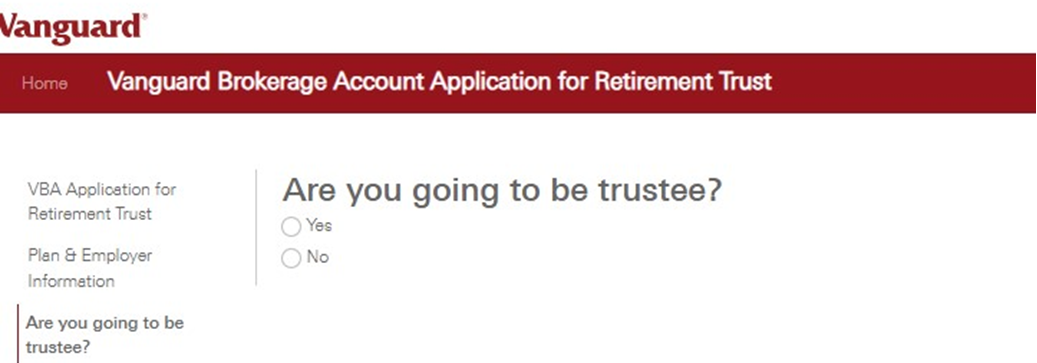
Verify your information is correct:

Employee Information:
- Enter the employee information as it pertains to your business.

Association Information:
- Review and check the boxes if they apply to you.

Additional Trustees:
- Each person who signed the plan documents must enter their information. This section may not be applicable for most users.

Investment Objectives and Sources of Funds:
- Select the following:

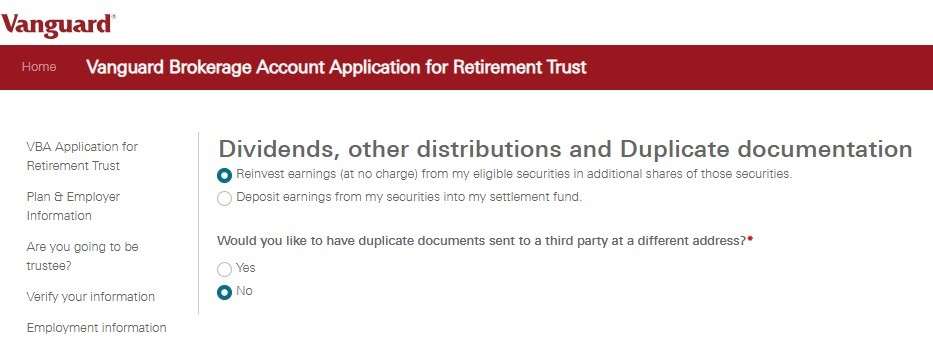
Dividends and Other Distributions:
- Select how you want to use earnings.
- We suggest “Reinvest earnings”.
- Duplicate documentation
- Select No.
Consent to Electronic Delivery of Disclosures
- Agree to Terms, then Review & Submit
- Carefully review all information and click Submit when ready


Final Thoughts
Since we specialize in setting up defined benefit plans and cash balance plans, we frequently work with Vanguard. However, they do not offer a defined benefit plan specifically for small businesses. Therefore, we assist our clients in establishing plans on Vanguard’s platform regularly.
Unfortunately, they do not have any instructions available on their website, nor are there any forms we can provide a link to. All processes are handled online with the assistance of a representative. Please make sure to have all your plan documents and questions prepared in advance. Good luck!